Showing posts with label advise. Show all posts

Wednesday, November 28, 2007

Turning your text UP-SIDE-DOWN

You will need to flip your text to appear as though it is up-side-down for pages 1, 2, 3 and the inside cover. You will notice if you select the text and manually rotate it using the double sided arrow that the selection box rotates, but the text does not.
Follow these steps to rotate:
  • Select all of the text with the Selection tool (the dark arrow)
  • Use the "Effect" drop down in the Menu bar at the top
  • Go to Effect> Distort and Transform> Transform...
  • The "Transform Effect" dialogue box will appear
  • At the bottom is a section called "Rotate"
  • In "Angle" box type 180 (for a 180 degree rotate)


Sunday, November 18, 2007

Managing your classwork

Below is a comprehensive list of assignments for the WHOLE semester. Any work completed, or posted, between now and the end of the semester will be counted for partial credit and only help your final grade.

Blog Posts that count for credit:
Post 1 - Post 5 websites that you use on a regular basis. Make them links if you can.

Post 2 - Post one of images you scanned after scaling, optimizing and saving for web.

Post 3 - Answer the following questions: What is compression and why do we use it? What is the difference between lossy and lossless compression?

Post 4 - Take the scan (the one you posted last week) and apply a filter or a glazing layer on it to make it into a "background" image.

Post 5 - [you should have a classmates "one a day" from last week] Use the your selection tools to cut out an "object" and apply it to a new layer. Use the brush tool (opacity, textures and scale) to "recreate" the object on another layer (this was the day we used the fish)

Post 6 - [you should have a classmates "one a day" from last week] Use the complex selection processes we learned (extract, quick selection) to isolate, select and add an "object" from one of your online images (the images you are gathering for the "Documentation and Annotation" project) to the "One a Day" image you downloaded in class.

Post 7 - Post your Documentation and Annotation video here.

Post 8 - Post a link to your Documentation and Annotation Flickr or Photobucket site

Post 9 - Post an image of your flickr map that is a link to the flickr map OR embed your google map (again part of the documentation and annotation project)
Additional Assignments:
- Set up a file storage system of folders to use for the class
http://ca-moore.blogspot.com/2007/08/homework-week-1.html

- Scan two images
http://ca-moore.blogspot.com/2007/08/homework-week-1.html

- Start a "text edit" document to keep track of all of your user names and passwords
http://ca-moore.blogspot.com/2007/08/homework-week-1.html

- Customize your blog colors (background, text, links, etc) by going to Template>Fonts and Colors tab.
http://ca-moore.blogspot.com/2007/09/homework-week-4.html

- Have a minimum of 20 images on your flickr or other online photography management tool. They should all be tagged, named and commented. If your site does not have "comments" you must add, by using the URL image option, 5 images to your blog and comment on them there.
http://ca-moore.blogspot.com/2007/10/homwork-week-7.html

Thursday, October 18, 2007

Embedding video to your blog

You should have already opened a Vimeo or Youtube account and uploaded your video.
  1. Now, start a new post on your blogger.
  2. Toggle from the "Compose" tab to the "Edit HTML" tab in the upper right hand corner of the blog post window (see image)
  3. Open a new window or tab with your Vimeo or YouTube video on it.
  4. If using YouTube, there will be a small dialogue box to the left of the video that says "Embed." Highlight the code in the embed window {apple C} to copy it.
  5. Toggle to your blogger post. Click inside the body of the "Edit HTML" window. Then {apple V} to paste the code.
  6. Publish the post.
  7. If using Vimeo. Open your video on a page. Hover your cursor over the video. Three buttons will pop up in the upper right corner of the video. One of them says "Embed." Click on it.
  8. A pop-up window will open. {apple C} to copy the highlighted code.
  9. Toggle to your blogger post. Click inside the body of the "Edit HTML" window. Then {apple V} to paste the code.
  10. Publish the post.
  11. Test to make sure it worked.

Wednesday, October 17, 2007

How to Animate your Still Images

  • Open Photoshop - Do not open your images yet
  • Set your workspace to the default: Window > Workspace > Default Workspace
  • Open the Animation Palette: Window > Animation
  • You should have a series of images prepared. Your images should be sized the same and be the same orientation (horizontal or vertical). They should also all live in a folder together.
  • Now load your images into photoshop: File > Scripts > Load Files into Stack...
  • A dialogue box will open: highlight your files. To highlight them all at once: click on the first, hold down shift, click on the last. Click ok.
  • Photoshop will automatically load the images into a single file as a series of layers. All layers will be "on," which means you will see the "eyes" turned on in the layers palette.
  • Once the files are loaded as layer, go to your animation palette and use the flyout menu. The icon for the flyout menu is very small. It looks like 3 little horizontal lines, like treads, in the upper right corner of the animation palette. When you click on it, the flyout will pop up... er, fly out.
  • Click on "Make Frames from Layers."
  • Be sure at this point to have the animation palette set to "frame" view. The animation palette has 2 views: Frames and Timeline. We want to work in frame view. To toggle between them, click the icon in the lower right corner of the animation palette. The frame view should look like a series of blocks lined in a horizontal row.
  • You will see that each layer loads as a frame in the animation palette.
  • As a default, frame "1" will be loaded at 10 seconds, and all of the other frames will load at 0 seconds. At the bottom of each frame you can adjust the amount of time that each frame is shown by clicking on the small drop-down and choosing a duration.
  • You will notice as you click on different frames that the layers palette has adjusted which layer is "on" (which eyes are on or off.) Since the layers palette is hierarchical from top to bottom, whatever is the top layer that is turned "on" will be the designated image for the frame.

Suggestions:
Until you get a handle on how the frames effect one another, work on editing your images and adding and subtracting layers first. Arrange and select the duration for your frames as a last step.

Exporting to a .mov file

This process will occur in a series of dialogue boxes. Just follow along.

  • Have your completed animation open in Photoshop
  • Got to File > Export > Render Video
  • The "Render Video" dialog box will appear

  • Give your file a name (do not disturb the three letter file extension)
  • Select the location of your choice to save it into
  • Select Quicktime Export
  • Click the "Settings" button to the right of "Quicktime export"
  • "Movie Settings" dialogue box appears
  • Click "Settings" at the top
  • "Standard Movie Compression Settings" dialogue box appears (I know, that is a lot of boxes)
  • Compression type = Mpeg 4
  • Set the frame rate to "30"
  • Set the key frame to "auto"
  • Set the Compressor to "medium"
  • Data rate to "auto"
  • Click OK
  • Back to "Movie Settings" dialogue box
  • Size 500x300 (youtube = 320x240)
  • Uncheck sound
  • Uncheck prepare for internet streaming
  • Back to "Render Video" dialog box
  • Check all frames
  • Render options set to 30
  • Click ok
After the export is completed, go to a Finder window and open the .mov file that you just created. Double click it to open it in quicktime. Make sure it plays properly.
Last, go back to finder and click once on the file. Look to see that the file is an appropriate size (YouTube and Vimeo will tell you what size they can handle)

Tuesday, September 18, 2007

Resampling & Save for Web

Re-sampling, or re-formatting, is the process of modifying the pixel count of an image. The reason we do this, is again, to make our file size as small as possible. You have started your "One a Day" project with a scan at 300 dpi, but a web image only needs to be 72 dpi. So we will re-sample the image as a means to be efficient and save room.
1.) Open your image in Photoshop.
2.) Go to Image>Image Size...
3.) First drop your resolution from 300 pixels/inch to 72 pixels/inch
4.) Next modify the "Pixel Dimension" width to meet your needs (between 300 - 500 pixels will be sufficient to fill your blog column.)
5.) Click OK
6.) Move along to the "Save for Web" tutorial below.
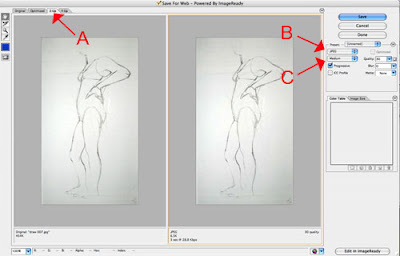


To prepare your image to post on Blogger is to optimize it using the "Save for Web" option. Optimizing is a way to lower your file size while not degrading your image quality. This will save more space on your blogger account.

1.) Open you image in photoshop.
2.) Go to "File" - "Save for Web"
3.) The "Save for Web" dialog box will open. Click on the tab "2-up" in the upper left hand corner [FIGURE A]. This will give you the original image on the left and the optimized version(s) on the right.
4.) On the right hand size you will see some options. Use the drop-down menu on the left, to make sure you are saving your image as a "JPEG" [FIGURE B].
5.) Use the next drop-down menu to choose the level of image quality [FIGURE C]. Try each option and watch how your image changes in the right hand window. Choose the image quality that is the lowest file size, but still acceptable to your for image quality. Remember, the goal here is to obtain the lowest file size possible to save space. (Aim for around 12k if you can)
6.) Looks good? SAVE!! and ReName-But remember not to use spaces in you file name. I also like to use the word "web" in it, so i know it is my web image. Save it in your images folder.
7.) Post it on your weblog! (Remember when posting on the blog, choose large image (since you have already formatted it, making it smaller is unnecessary.)

Monday, September 3, 2007

Using your iPod for file storage

If you plan on using your iPod as an external disk, you will need to format it. You can download this PDF for instructions. Look under "Extra Features and Accessories," then click on "Using iPod as an External Disk." This will take you to page 45 of the manual. Additionally, on page 46, you may want to follow the formatting instructions to prevent iTunes from automatically opening. This way, when you connect your iPod for the purpose of file storage, you will not have to wait for iTunes to boot up. You will just open your iPod in a Finder window.

The link above may not be the exact instuctions for your particular iPod, depending on what model you own. You can go to the Apple website to get the manual for your particular model. CLICK HERE FOR A LIST OF DIFFERENT MODELS AND MANUALS.

You should also be sure to prevent the lab computers from syncing with yout iPod when you initially attach it. Cancel out it this starts automatically.